During the installation process, you were prompted to enter a hostname for your server. Specifically, during the initial setup process, the field was named "Your server's name."
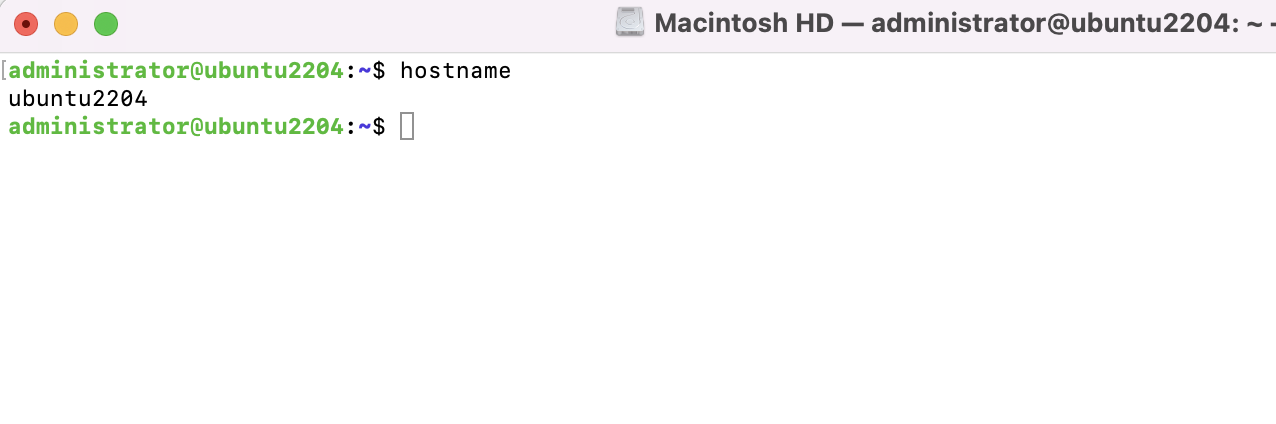
Step 1. To see the whole hostname, use the "hostname" command:
Step 2. Changing the hostname is a straightforward process. To accomplish this, we can use the "hostnamectl" command as "root" or "sudo."

Step 3. That's all well and good, but what exactly does that command do? I'd love to give you a detailed explanation, but all it actually does is update the contents of a text file (particularly, /etc/hostname). To verify this, run the cat command to inspect the contents of this file before and after making the change with hostnamectl:
Step 4. You'll notice that this file just provides your hostname.

Step 5. After changing your hostname, you may get an error message similar to the one below after executing various commands:
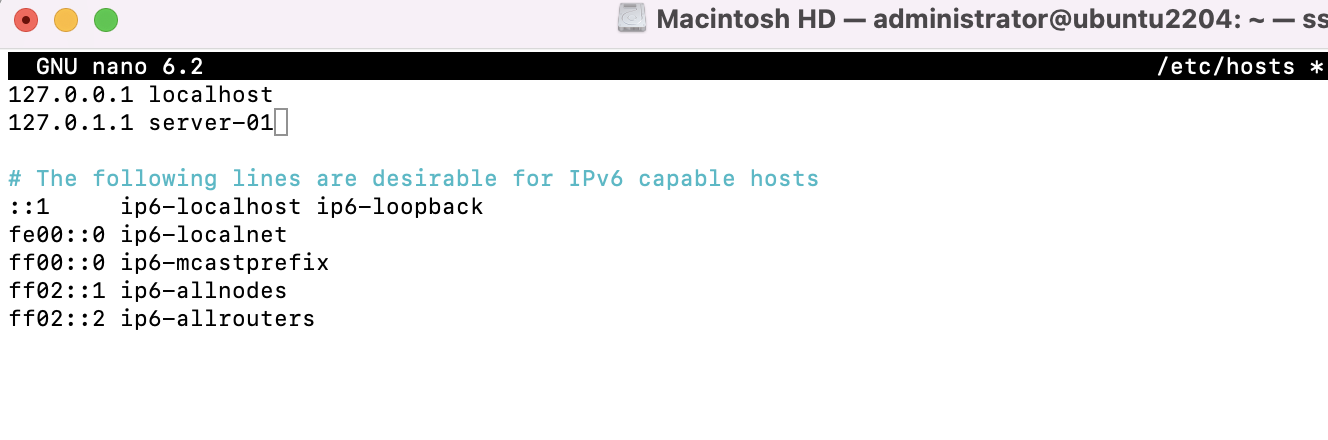
Step 6. This error indicates that the computer can no longer resolve your local hostname. This is due to the fact that your hostname is not only stored in the "/etc/hostname" file; it is also referenced in "/etc/hosts." Unfortunately, the "hostnamectl" command does not change "/etc/hosts," thus you must manually edit that file to resolve the problem. On an example server, the /etc/hosts file looks like this:
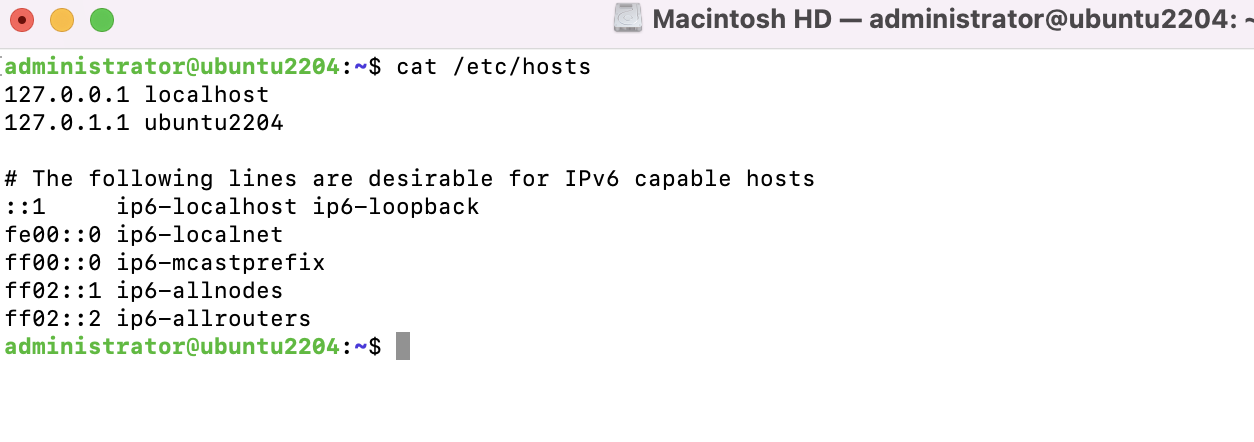
Step 7. Open the file and replace the old hostname with the new.